

Summary
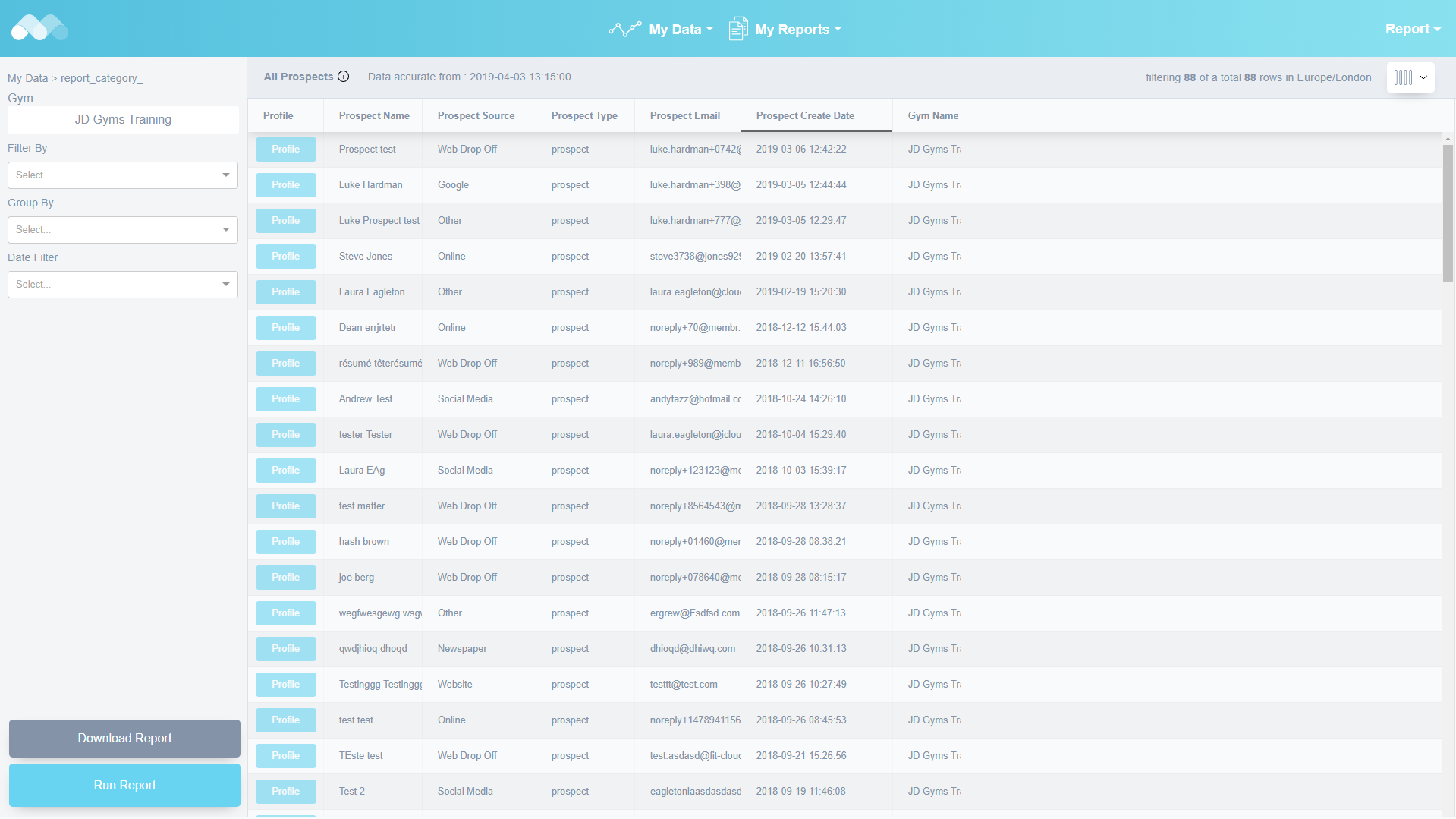
You can access the report in:
My Reports --> Prospect Reports --> All Prospects
This report shows a comprehensive listing of ALL prospects entered into your system. By clicking on the blue Profile button, you will also jump directly to the particular prospect profile in the main Membr product (assuming you came from there, or were already logged into it and were using the Report Builder as a standalone website).
Because we are looking at ALL your prospect data, with no filtering or other criteria, you may find it useful to narrow the data down to a particular date range, or to show only those prospects that have not signed up etc. Stick with us, and we'll show you how!
To Show Signed-Up Prospects
There are many items of data associated with prospects, and there isn't enough room to display them all in the report. However, you can easily choose which items of data are important to you - just click on the column-chooser drop-down at the far right of the display:
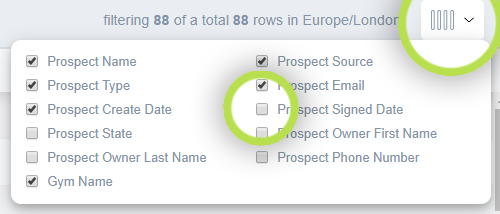
Add the Prospect Signed Date column for example, so that we can also see this data for each prospect in the report. If you add columns in this way, you will need to Run Report again to refresh the display:
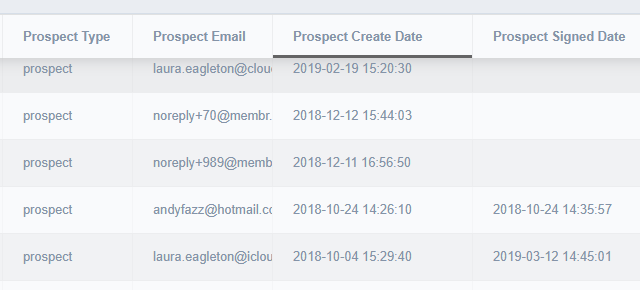
If you wished to further refine your report, say to only show those prospects that HAD or HAD NOT signed up, you can easily add a filter to do this.
To add most filters you would click on the Filter By drop-down, but any date-based filters (such as Prospect Signed Date) are accessed with the Date Filter drop-down instead. As soon as you click on the Date Filter, it will show any date columns that can be filtered for this report type:
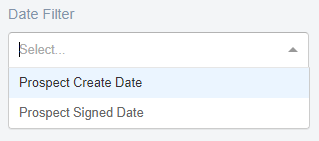
Click on the Prospect Signed Date for example, and then choose what type of filter you want. You might want to filter (show) only those people that had signed-up between certain dates. In our case, we'll just choose any prospect with a signed-up date that 'exists'; in other words, prospects that HAVE been signed up:
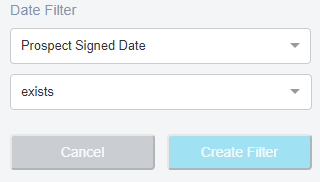
As soon as you click on Create Filter, it will be applied to the report:
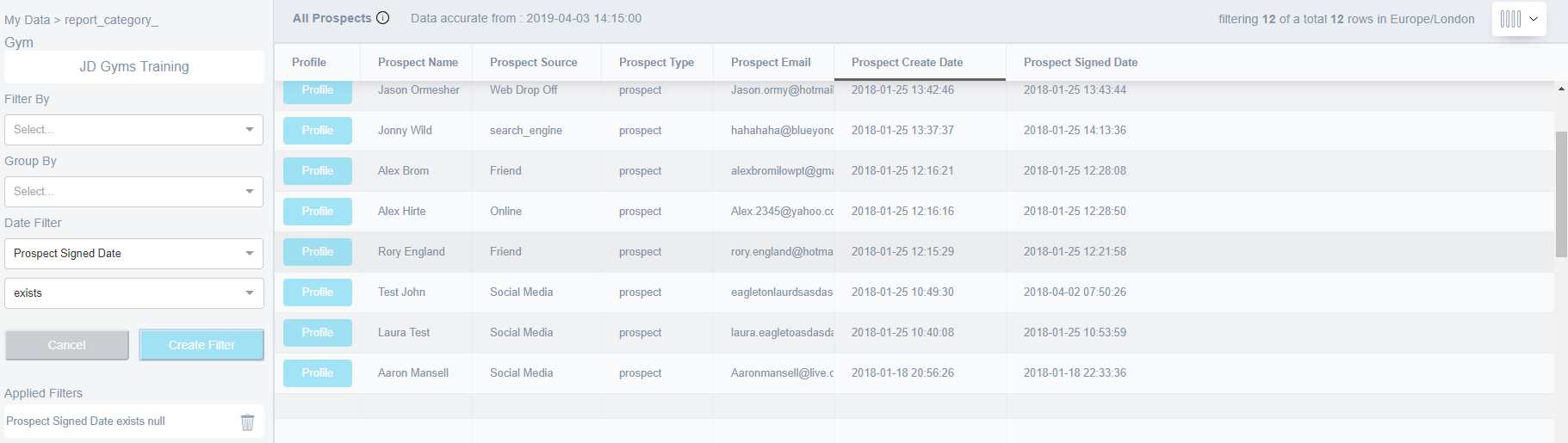
The report now only shows those prospects that have been signed up, and to remind you of this, the Applied Filters area shows any filters in use (you can add several). Click on the trash icon next to each one, to remove that filter from the report.
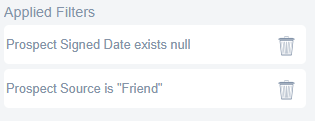
You might add a filter to narrow the selection down to only show signed-up prospects that have been referred by friends for example. If you did, your filter list would show the additional filter:
Experiment with the various filters and columns; you can extract very specific information to exactly suit your needs!
Comments
0 comments
Please sign in to leave a comment.