

Summary
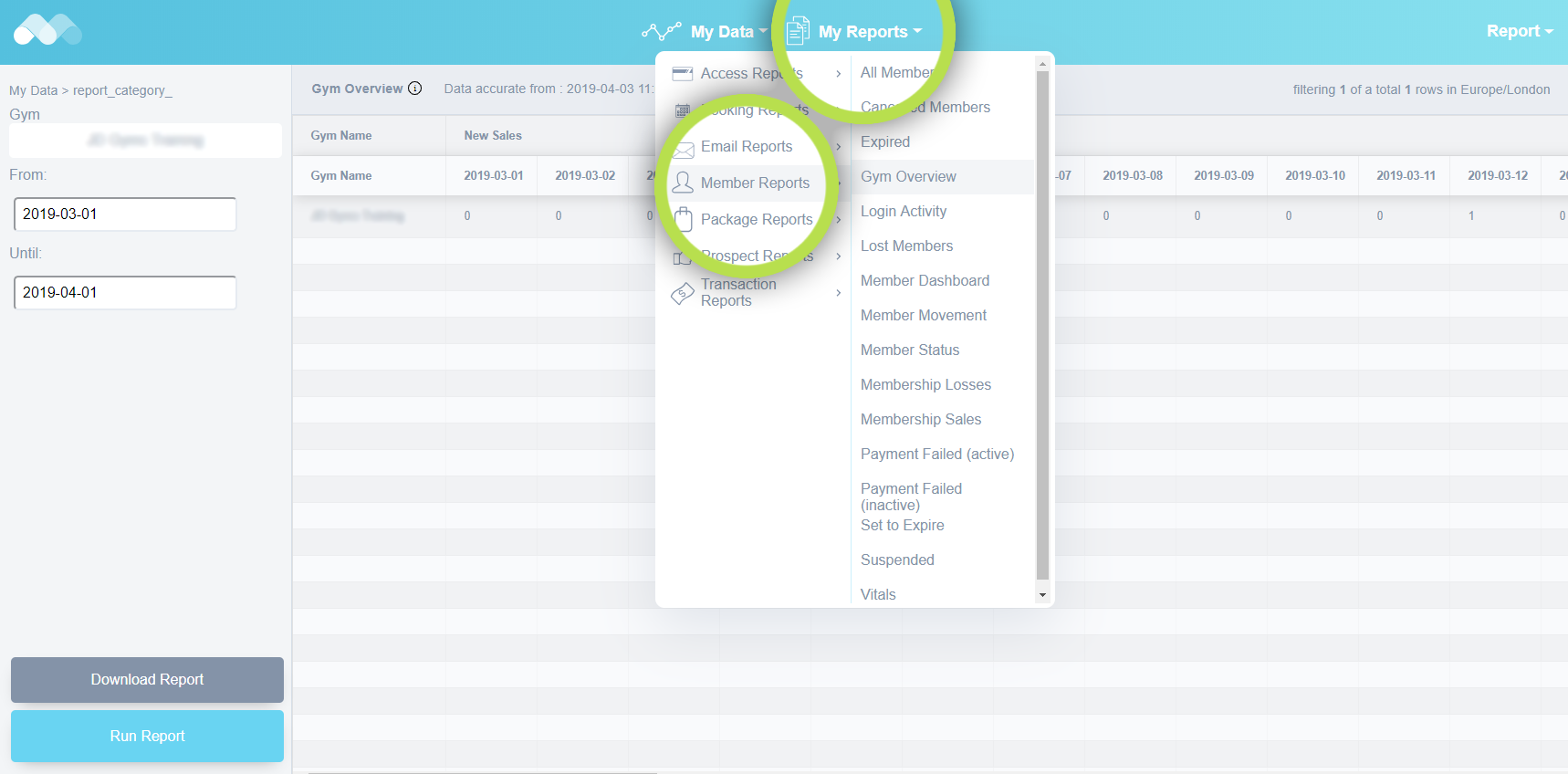
The Gym Overview provides an easily-digestible snapshot of how a gym, or gyms, are performing. At-a-glance you can see a day-by-day breakdown of new members, in addition to total leavers for the period, members, prospects and more - it's a great tool for monitoring performance!
The default time range for this report covers the last full calendar month, but the dates can easily be adjusted to show a week, or any other time period, that suits.
As per the screenshot above, you can find the report in the My Reports area, in Member Reports:
My Reports --> Member Reports --> Gym Overview
Running the Report
If you choose the Gym Overview report as described above, your screen will display a report similar to this:
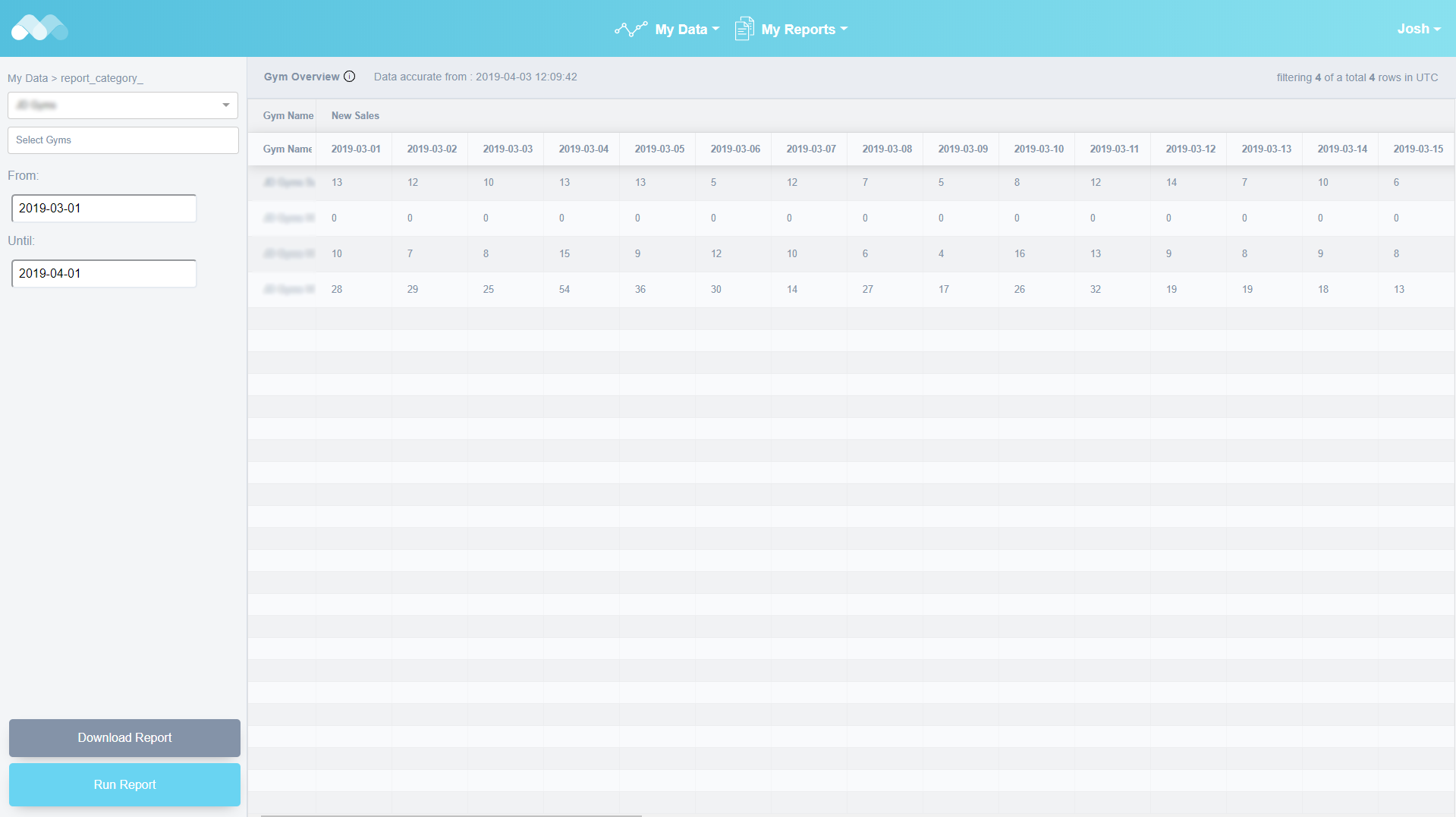
Many Report Builder logins are designed to give access to the data for a single gym only, whereas others may show several gyms on separate lines; therefore your display may differ slightly, but the information being displayed is the same.
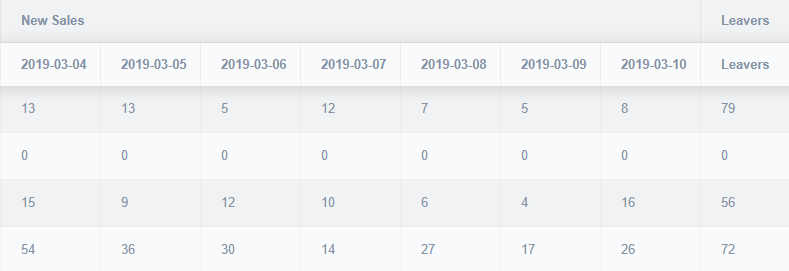
For each report row/gym, the system shows a day-by-day summary of sales (or new members).
If you scroll all the way to the right of the report (there is a thin scroll bar at the bottom of your browser window), there is additional data to summarise members that have left, prospect activity, access events and more:

Adjusting the Reporting Period
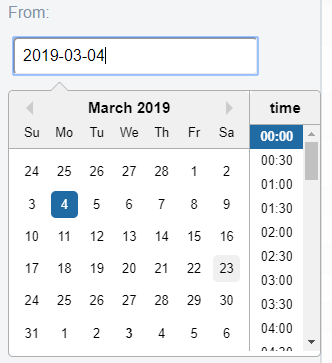
The report defaults to the last full calendar month. To change the period, click on the From: or To: fields to open the date picker. Let's pick the first Monday in March, the 4th in this case...
And now just open the To: picker to set a date on the following Monday (11th in this case):
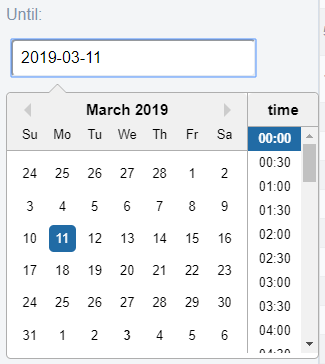
(The date picker does not close when you select a date. This is to allow for further adjustments or specific time selection - just click outside the date box to confirm your choice)
Voila! Your report will run again to show the data for the selected dates:
Comments
0 comments
Please sign in to leave a comment.