

A. f you have sent emails to your members, you will probably have noticed a tag entitled {REJOIN_URL} in the tags section.
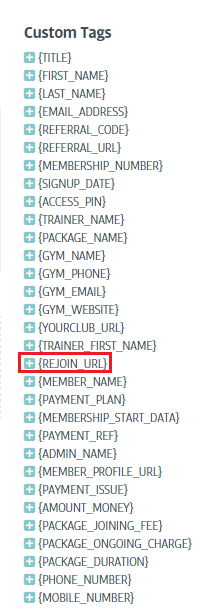
This is one of two tags which can be sent to members to help them rejoin. Using the Rejoin URL, members will not have to input any of their personal details to rejoin. They will simply be able to select the package they wish to join, then enter their payment details (if required). This is a much quicker way of getting your members to rejoin, and saves the hassle of waiting for emails to arrive when a member wishes to rejoin in person at your club.
The second tag, {RENEWAL_URL}, works slightly differently to the {REJOIN_URL}, and both are explained below:
{REJOIN_URL}:
This URL is generated as soon as a member expires from their membership. This can therefore be used to send an email to any expired or cancelled members. This URL, unlike the renewal URL, will not work while the member is still active.
{RENEWAL_URL}:
This will be generated at the same time the first automatic renewal email is sent to the member (explained later in this article). After this first email has been sent, then the {RENEWAL_URL} tag can be used by a member to renew their membership onto a new package, even if they are not due to expire for a while.
Setting up automatic renewal emails:
In order to set up your automatic renewal emails and begin to use them, please navigate to Setup > Settings > Additional Settings.
Here, scroll down until you come across this setting:

Sliding this on (to the right) will open up the ability to see the standard set reminders, as well as the button to 'add' a new reminder:
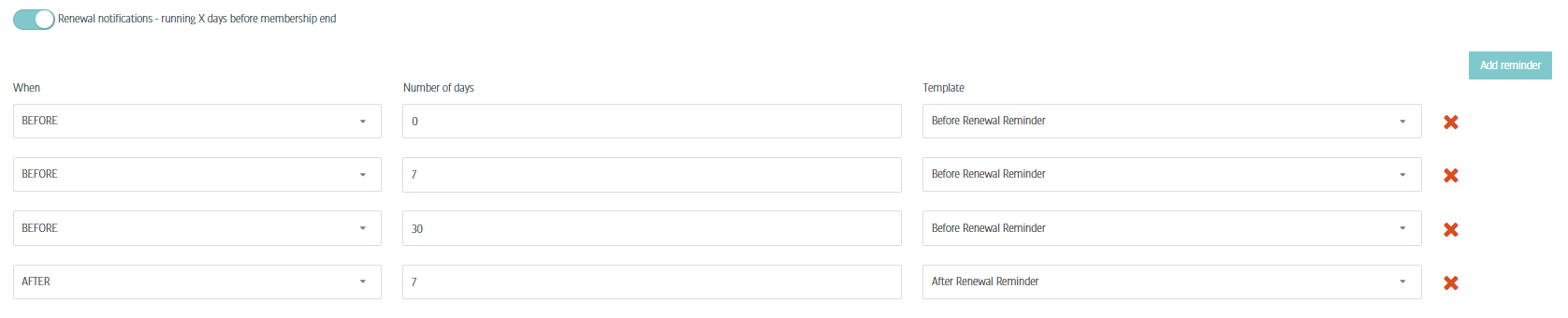
Each 'reminder' is an automatic renewal email. You can choose to delete or change the existing reminders, or add new ones. If you select 'Add reminder' you will get a blank template where you can add 'when', 'Number of days' and 'template' for your email. If you choose to edit an existing template, then you just need to edit the sections.
Creating/ Editing a reminder:
First, you need to decide if you would like this email to be sent before or after the member expires from their membership. You will need to set at least one of these reminders to be sent before the membership expires if you wish to be able to use the {RENEWAL_URL} tag for members.
Second, select the number of days before/after the membership expires that you want the email to be sent. For example, you can set a reminder to be sent 7 days before the membership expires, or 3 days after the membership expires. Please note, that the first reminder cannot be set for the day the member signs up to the package. For example, if a member signs up for a 5 day package with access for 5 days, then the first reminder needs to be set to at least 4 days before expiry. If it is set to 5 days before expiry, it will not be sent to this member.
You will then need to select an email template to be sent. The templates which you should use are either 'Before renewal reminder' or 'After renewal reminder' to start with (depending on whether the reminder has been set to go before or after the member expires). Again, the 'Before renewal reminder' needs to be set if you want to be able to use the {RENEWAL_URL} to allow the member to rejoin before they have expired from their current membership.
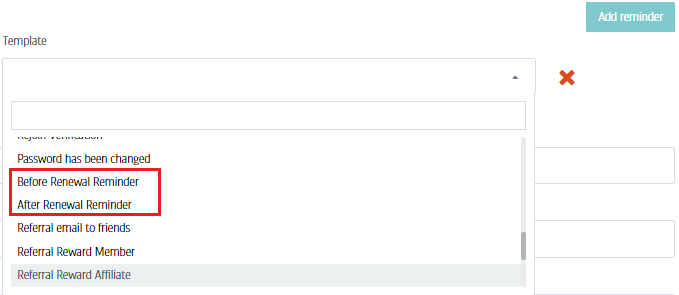
You can change the content of both the before/after renewal emails by navigating to Set up > Emails and then finding the aforementioned emails in the list.
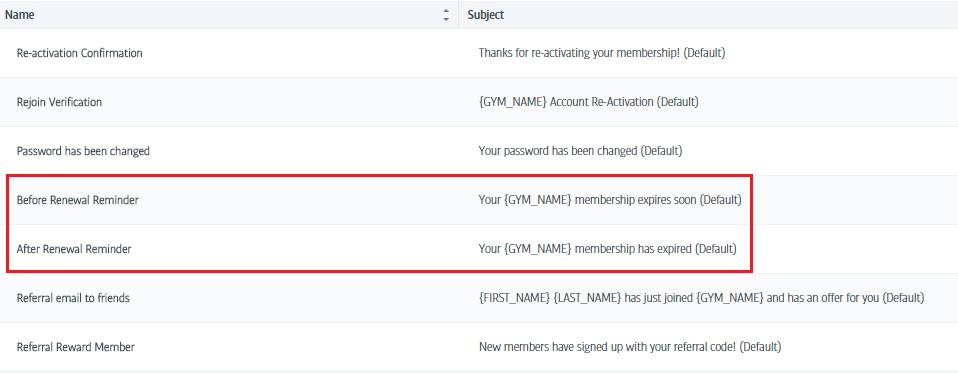
You can then click on the cog symbol next to the emails and select edit, which will allow you to edit the content of the email.

Within the email section you can also add a new email template, so you can create your own email using the renewal reminders, if you wanted more variance and multiple emails to be sent.
Comments
0 comments
Please sign in to leave a comment.